

Description
Download MiniTool Partition Wizard – Free Partition Management Tool for Windows
MiniTool Partition Wizard is a powerful, user-friendly partition management software designed for Windows users who need to organize, modify, or recover disk partitions. Whether you're a home user managing personal files or a tech-savvy professional handling complex storage setups, this tool offers a wide range of functions to help you efficiently manage your hard drives. With intuitive controls and a clean interface, MiniTool Partition Wizard allows you to resize, move, copy, merge, split, delete, and recover partitions—all without losing data. The free version provides robust functionality for everyday tasks, while the paid version unlocks advanced features like dynamic disk support, cluster size adjustment, and disk cloning. It's one of the most trusted disk management tools available today, offering a secure and reliable way to optimize your storage space.
Key Features of MiniTool Partition Wizard
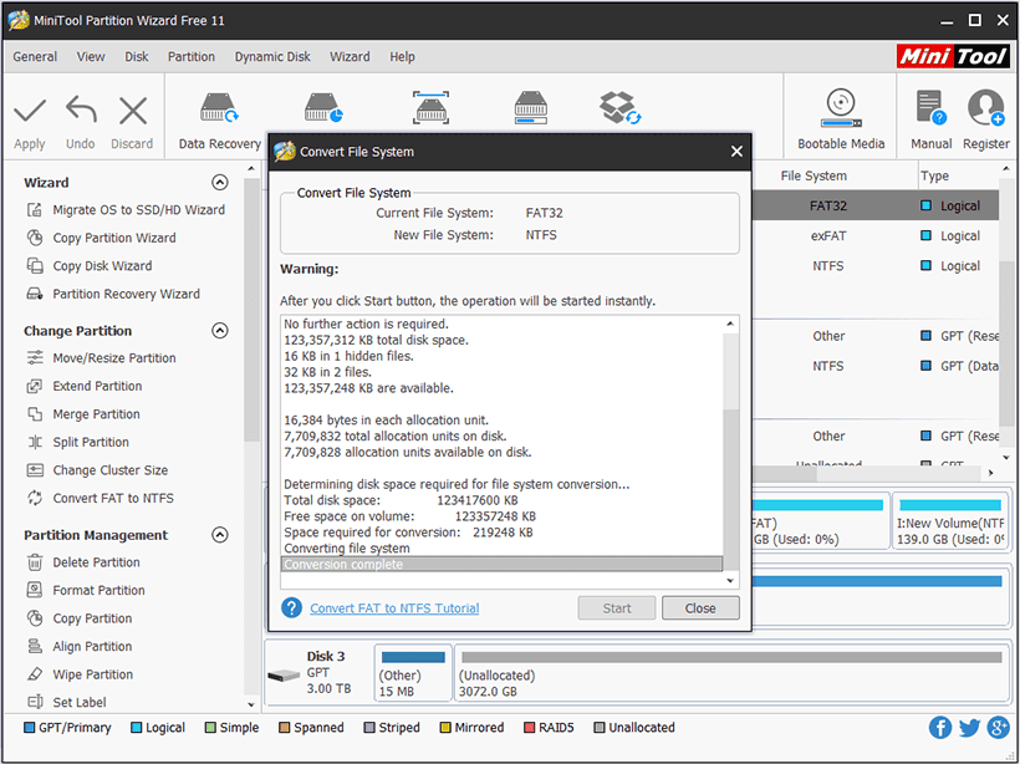
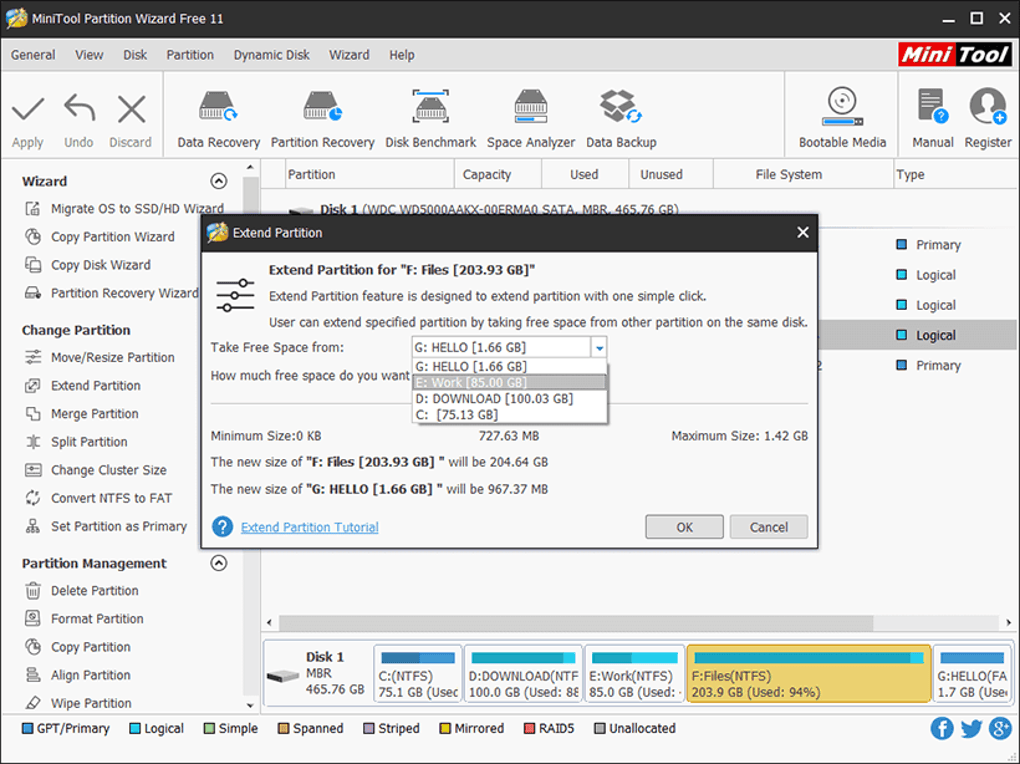
MiniTool Partition Wizard stands out in the crowded field of disk management tools thanks to its comprehensive feature set. The software is built around a straightforward, left-to-right interface: the left panel displays all available drives and partitions, the top toolbar holds action buttons, and the right panel gives real-time feedback on changes. This layout makes it easy to navigate even for first-time users. One of the standout features is the ability to resize or move partitions without data loss—ideal for users upgrading their system drives or reorganizing storage. You can also extend a partition into unallocated space, which is especially useful when your system drive runs out of space.
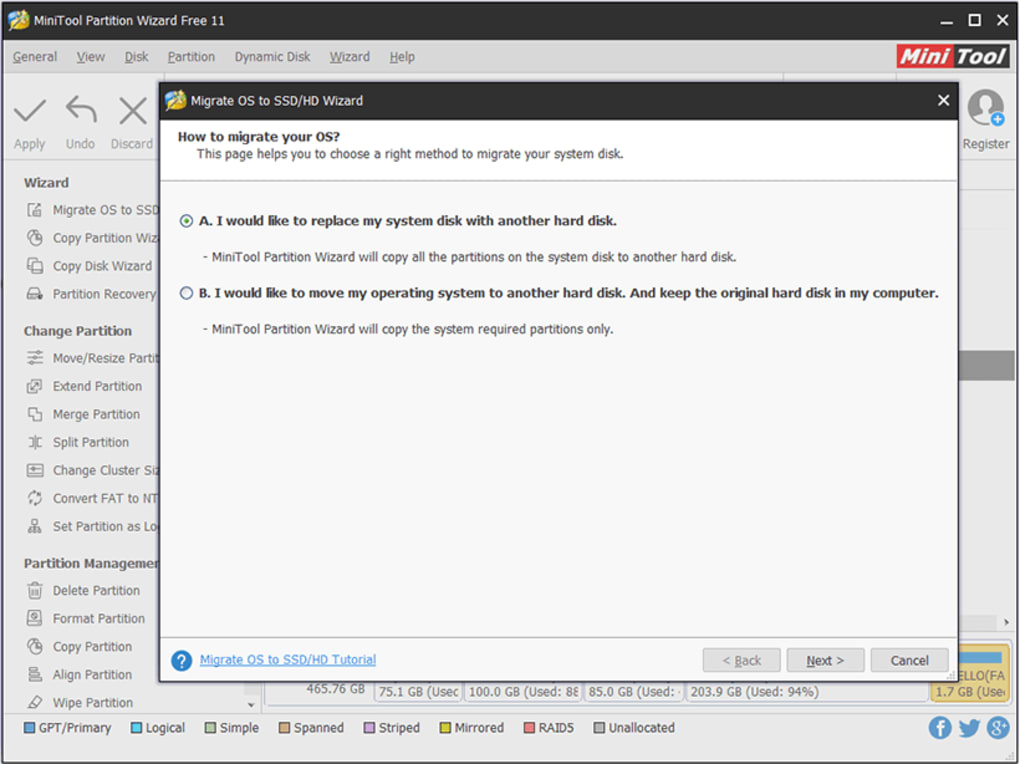
Another powerful feature is the built-in partition recovery tool. If you accidentally delete a partition or lose data due to corruption, MiniTool Partition Wizard can scan your drive and recover lost partitions with high success rates. It also supports converting between MBR and GPT disk formats, which is essential when preparing drives for UEFI systems. The software allows you to change drive letters, assign labels, format partitions, and even hide partitions for security. For users working with multiple drives, the ability to copy entire disks or partitions to new drives is invaluable—especially when upgrading to an SSD.
While the free version handles most common tasks, the paid version adds critical enhancements like dynamic disk management, advanced alignment options, and support for disk cloning and backup. These features make it a go-to tool for IT professionals and power users. Overall, MiniTool Partition Wizard combines functionality, ease of use, and reliability—making it one of the best free partition management tools available for Windows.
How to Install and Use MiniTool Partition Wizard
Installing MiniTool Partition Wizard is quick and straightforward. First, download the installer from the official website—available for both 32-bit and 64-bit Windows systems. Once downloaded, run the executable file and follow the on-screen prompts. The installer is lightweight and doesn’t include bundled adware or unnecessary software, which is a major plus compared to many free tools. After installation, launch the application and you’ll be greeted with a clean, organized interface that makes managing partitions intuitive.
To perform basic tasks like resizing a partition, right-click on the target partition in the left panel and select “Resize/Move.” Drag the slider to adjust the size or move the partition left or right. You can also merge adjacent partitions by selecting “Merge” from the context menu. For more advanced operations, such as copying a disk or recovering a deleted partition, use the “Copy Disk” or “Recover Partition” tools from the main menu. These features are especially useful when upgrading to an SSD or recovering lost data after a system crash.
Before applying any changes, always review the pending operations in the right panel. MiniTool Partition Wizard provides a preview of all actions, allowing you to double-check before execution. Once satisfied, click “Apply” to execute the changes. The software will then perform the operation in the background, often requiring a reboot to complete certain tasks—especially when modifying system partitions. The entire process is safe and well-documented, ensuring minimal risk to your data.
Compatibility and System Requirements
MiniTool Partition Wizard is fully compatible with all major versions of Windows, including Windows 10, Windows 11, Windows 8.1, and Windows 7 (both 32-bit and 64-bit). It supports a wide range of storage devices, including HDDs, SSDs, USB drives, and external hard drives. The software works seamlessly with both MBR and GPT partition styles, making it ideal for modern UEFI-based systems and legacy BIOS setups.
For users who need to manage partitions without booting into Windows, MiniTool offers a bootable rescue disk option. This is particularly useful when the operating system is corrupted or unbootable. You can create a bootable USB or CD/DVD using the included wizard, which allows you to access MiniTool Partition Wizard from a separate environment. This feature is invaluable for data recovery and disk repair tasks.
System requirements are modest: a minimum of 512 MB RAM, 100 MB of free disk space, and a processor running at 1 GHz or higher. This ensures the software runs smoothly even on older machines. While the free version lacks support for dynamic disks, the paid version includes full dynamic disk management, including the ability to create, resize, and format dynamic volumes. This makes it a versatile tool for both home users and IT administrators.
Pros and Cons of MiniTool Partition Wizard
- Pros:
- Free version offers powerful partition management features
- Intuitive, user-friendly interface with clear visual feedback
- Safe data operations with preview before applying changes
- Supports MBR and GPT disk formats
- Advanced recovery tools for lost partitions
- Bootable rescue disk available for emergency repairs
- Lightweight and fast performance
- Cons:
- Free version lacks dynamic disk support
- No built-in backup or cloning features in the free edition
- Can be risky for beginners due to lack of safety warnings
- Some advanced features locked behind paid upgrade
- Limited support for older Windows versions (e.g., Windows XP)
Frequently Asked Questions (FAQ)
- Is MiniTool Partition Wizard free to download and use?
Yes, MiniTool Partition Wizard offers a fully functional free version that allows users to resize, move, copy, delete, and recover partitions. However, advanced features like disk cloning, backup, and dynamic disk management require the paid version.
- Can I use MiniTool Partition Wizard on Windows 11?
Yes, MiniTool Partition Wizard is fully compatible with Windows 11. It supports all modern storage technologies and works seamlessly with UEFI systems and SSDs.
- Does MiniTool Partition Wizard support SSD optimization?
Yes, the software includes SSD alignment and optimization features that help improve performance and extend the lifespan of your SSD by ensuring proper sector alignment during partitioning.
- Can I recover a deleted partition with MiniTool Partition Wizard?
Yes, the built-in partition recovery tool can scan your drive and recover lost or deleted partitions. It’s especially effective when used immediately after deletion.
- Is there a Mac version of MiniTool Partition Wizard?
No, MiniTool Partition Wizard is currently only available for Windows. However, MiniTool offers other tools like MiniTool Partition Recovery for Mac users.
Conclusion: Why Choose MiniTool Partition Wizard?
If you're looking for a reliable, secure, and feature-rich partition management tool for Windows, MiniTool Partition Wizard is an excellent choice. Its free version delivers impressive functionality for home users and casual tech enthusiasts, while the paid version caters to professionals who need advanced disk management capabilities. With support for dynamic disks, cloning, backup, and recovery, it’s a complete solution for managing your storage environment.
Despite minor drawbacks—such as the lack of safety warnings for beginners and limited dynamic disk support in the free version—the overall experience is smooth, efficient, and data-safe when used correctly. The ability to create a bootable rescue disk adds an extra layer of reliability for emergency situations.
Whether you're resizing a partition, recovering lost data, or upgrading to an SSD, MiniTool Partition Wizard simplifies the process with minimal risk. Download the free version today and take full control of your disk space with confidence.
Download MiniTool Partition Wizard now and enjoy a secure, powerful, and free partition management experience on your Windows PC.
Guides & Tutorials for MiniTool Partition Wizard
How to install MiniTool Partition Wizard
- Click the Preview / Download button above.
- Once redirected, accept the terms and click Install.
- Wait for the MiniTool Partition Wizard download to finish on your device.
How to use MiniTool Partition Wizard
This software is primarily used for its core features described above. Open the app after installation to explore its capabilities.
User Reviews for MiniTool Partition Wizard 0
No reviews found





